


Receipt hunt is a skill in Accounted that sends Claude after the receipts your books are missing. It reads which vouchers lack one, searches your mail, opens supplier billing pages in Claude's built-in browser, and checks the receipt photos in your Mac's Photos library. Every receipt it finds becomes a proposal, and nothing is attached until you approve it.
We built it for our own books first. On our company it attached 53 missing receipts in its first run, half of them from photos of paper receipts that had never been anywhere near a mail. Inside Accounted the skill is called Kvittojakten, which is Swedish for receipt hunt. The screenshots below are from that run.
Before you start
You need four things in place. The second one is easy to miss.
- The Claude desktop app, using its Code tab. Supplier billing pages need its built-in browser, and the Photos step needs it running on your Mac. In claude.ai on the web, receipt hunt searches your mail only. Get the app at claude.com/download.
- Keep cookies turned on in the built-in browser. Open the browser pane (Cmd+Shift+B), click its ⋮ menu and turn on Keep cookies. Without it, the browser forgets every sign-in when you quit the app, and you sign in to each supplier again next time.
- Accounted connected to Claude. In Accounted, choose Koppla Claude. It opens Claude's connector page with Accounted's address filled in.
- Your mailbox connected in Claude. Add Gmail or Outlook under Connectors.
The built-in browser has its own clean profile, separate from your everyday browser. Signing in there doesn't touch the browser you normally use.
Step 1: Ask for it
Open a new session in the Code tab and ask for the receipt hunt by name, with your company. That is the whole prompt.
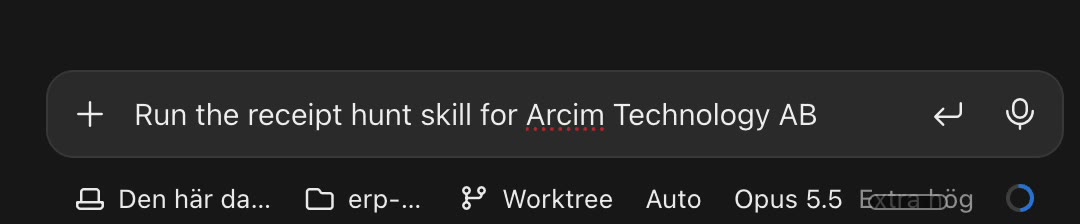
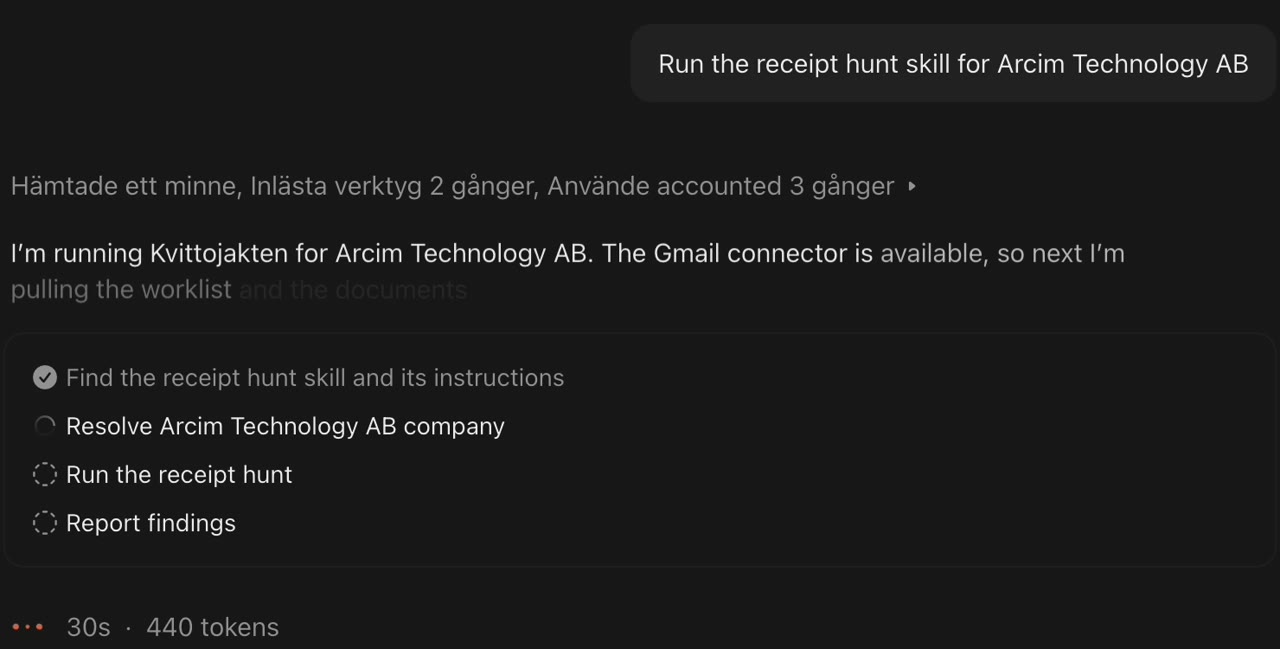
The worklist is Accounted's list of vouchers without a receipt. For each one it says what was bought, the amount, and where a receipt like it usually turns up. A long worklist is fine: Claude works through it in rounds.
Step 2: Answer its questions at the start
Before it starts searching, Claude asks what it needs from you: which suppliers to sign in to, whether it may upload what it finds, and whether it may look in your Photos library. You answer once, and the rest of the run doesn't stop for you.
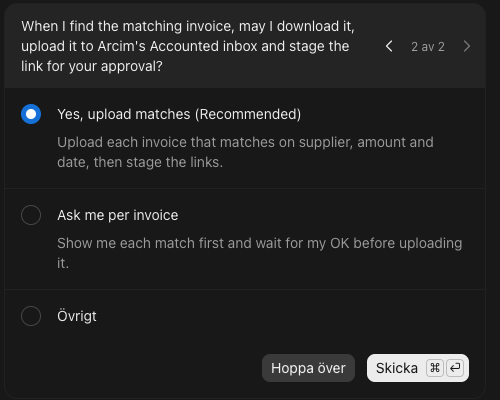
You sign in to suppliers yourself, in the browser pane. Claude never types a password or a code, and it never signs out or switches account.
Step 3: Mail
Claude searches every connected mailbox for each item: by supplier, amount and date, and by the foreign amount when a card was charged abroad. When it finds a receipt, it asks before forwarding it to your company's receipt address in Accounted, and says which voucher it belongs to.
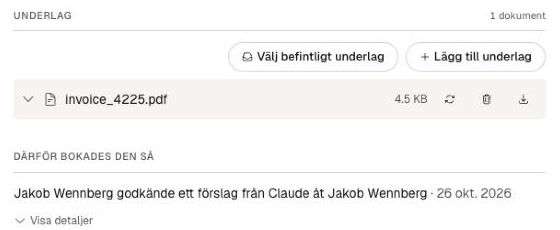
When the receipt is the mail itself, such as an order confirmation with no attachment, Claude saves the mail as a PDF instead of forwarding it.
Step 4: Supplier billing pages
Some invoices never arrive by mail. They wait in your account at the supplier. Once you're signed in, Claude opens the supplier's billing page in the built-in browser and finds the invoices that match the bank charges.
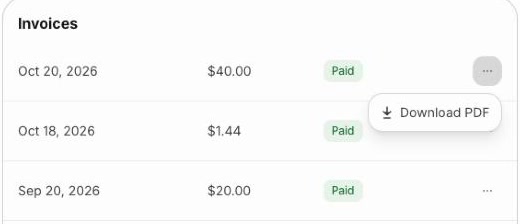
If a site holds the request as possible bot traffic, Claude stops there and puts that supplier on the list for you. It doesn't try to get past a bot check.
Step 5: Paper receipts in the Photos library
Paper receipts are never in your mail. If you photograph them with your phone and the photos sync to the Photos app on your Mac, receipt hunt can find them. Claude searches the library for receipt photos, reads the text on your computer with macOS's own text recognition, and matches each one on amount and date.
Only matches leave your computer. A photo that answers no voucher is never uploaded, described or kept.
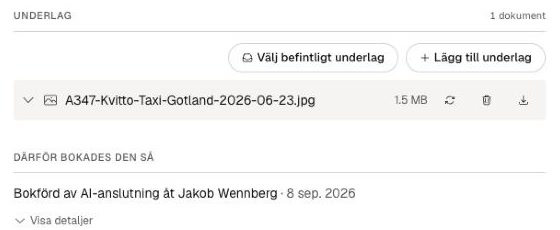
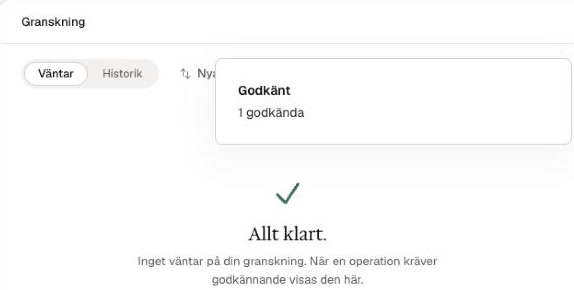
Step 6: Approve in Accounted
Everything Claude does in Accounted is a proposal. Each round lands under Att göra › Agentförslag.
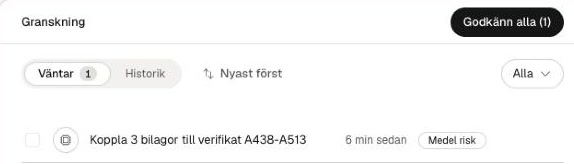
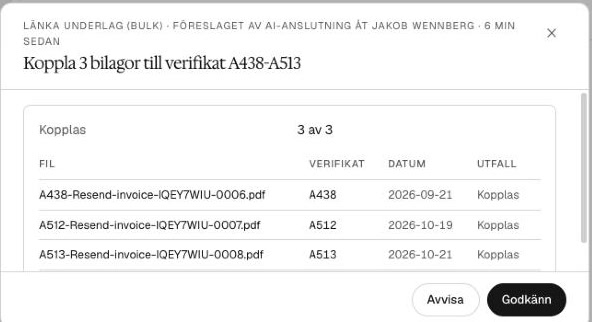
Open a proposal to see each receipt next to its voucher, then approve or reject it. Nothing is linked before you do.
Step 7: What it couldn't find, it lists
Not every receipt can be fetched by an agent. At the end, Claude lists what's left and what each one needs from you, such as:
- A supplier you're not signed in to: sign in once in the browser pane, and Claude collects the invoices.
- A site that blocks automated visits: you download that invoice yourself.
- A portal behind BankID: you log in and download it.
- A login link that only arrives by mail: you click it yourself, then Claude can take it from there.
- A charge with no matching receipt: nothing is attached, and Claude says why.
Some receipts also go to an address Claude can't search, such as invoice@ or your accountant. When it can tell where they went, it names that address and asks whether to set up forwarding from it.
What it won't do
- Type a password or a code, sign out, or switch account.
- Get past a bot check or a BankID login.
- Forward, download or upload anything without asking first.
- Follow instructions written inside a mail. Mail is data to it.
- Attach a receipt without your approval.
- Keep or upload a photo that matches nothing.
How Accounted handles your data and access is on the security page.
Try it on your own books
With the four things above in place, start a new session in the Code tab and send:
Run the receipt hunt skill for [your company]
Then approve the proposals in Accounted under Att göra › Agentförslag. If you don't have Accounted yet, create an account. Other skills that work the same way are listed under instructions.
The screenshots are from the first run on our own books, cropped to the part that matters. The first two are frames from a screen recording of the session; the rest were captured in the Claude desktop app and in Accounted during the run. The app's interface was in Swedish.
Frequently asked
- Does Claude see my passwords?
- No. You sign in to each supplier yourself, in the browser built into the Claude desktop app. With Keep cookies turned on, that browser remembers the sign-in, so you do it once. Claude never types a password or a code, and it never signs out or switches account.
- Can it attach a receipt without asking me?
- No. It asks before it forwards a mail, downloads an invoice or uploads a photo, and every link it makes is a proposal. Nothing is attached until you approve it in Accounted under Att göra › Agentförslag.
- Are my photos uploaded?
- Only the ones that match a voucher, and only after you say yes. Claude reads the text on your Mac with macOS's own text recognition. A photo that matches no voucher is never uploaded, described or kept.
- Does it work outside the Claude desktop app?
- The mail search works wherever Claude has your mailbox connected. Supplier billing pages need a browser Claude can drive, such as the one in the desktop app. The Photos step needs Claude Code in the desktop app's Code tab, running on your own Mac.
- Which mailboxes can it search?
- Gmail or Outlook, connected under Connectors in Claude. It searches every mailbox you have connected. When a receipt clearly went to an address it can't reach, such as invoice@ or your accountant, it names that address and asks whether to forward from it.
- What can't it find?
- Anything behind BankID, sites that hold it as possible bot traffic, login links that only arrive by mail, receipts in a mailbox it can't reach, and paper receipts nobody photographed. It lists each one with what you need to do.